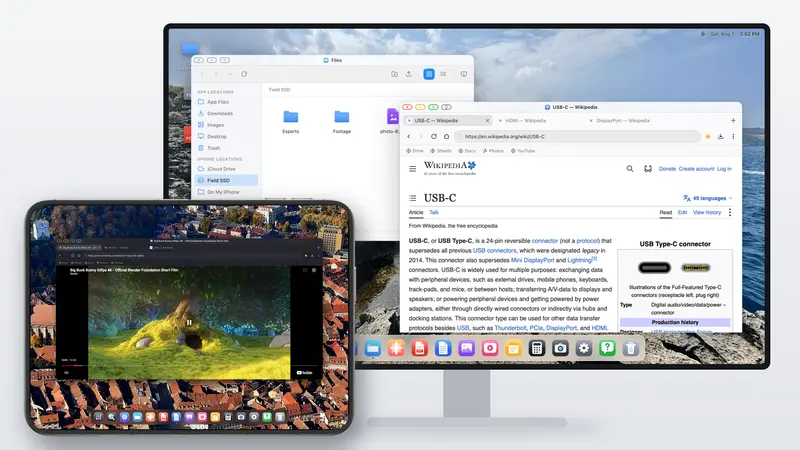
Which cable do you need?
| Your iPhone | Monitor input | What to use |
|---|---|---|
| USB-C (iPhone 15 and later) | USB-C | One USB-C cable that carries video |
| USB-C (iPhone 15 and later) | HDMI only | A USB-C to HDMI cable or a multiport adapter |
| Lightning (iPhone 14 and earlier) | HDMI | Apple's Lightning Digital AV Adapter and an HDMI cable |
With USB-C on both ends, one cable usually carries the picture. Whether it also carries power to the phone depends on the monitor and on which of its ports you use, so check the spec sheet.
What you'll see first, and why
Plug it in and the monitor shows your iPhone screen, tall and narrow, with black bars down both sides. That's iOS screen mirroring. The phone is about 19.5:9 and the monitor is 16:9, so the copy of the phone's screen is fitted to the height and the sides stay black. On a 15.6-inch panel you're left using a strip in the middle, laid out for a phone held in your hand.
No cable or setting changes that, because iOS only copies what the phone draws for itself. More about it in why your iPhone shows black bars.
Turning the monitor into a desktop
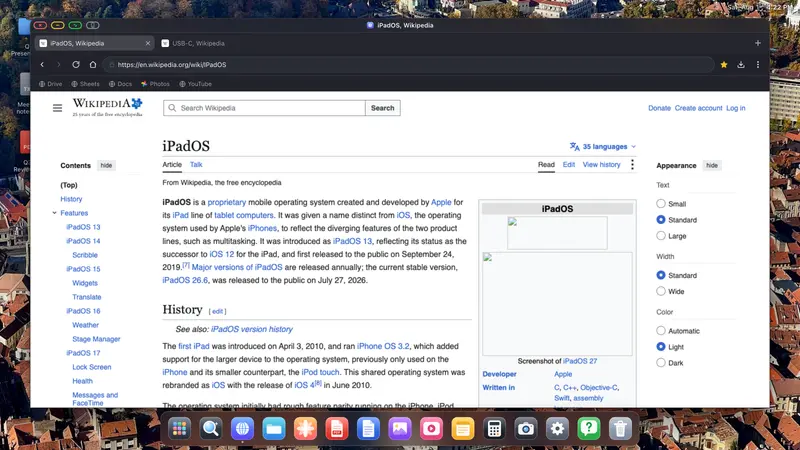
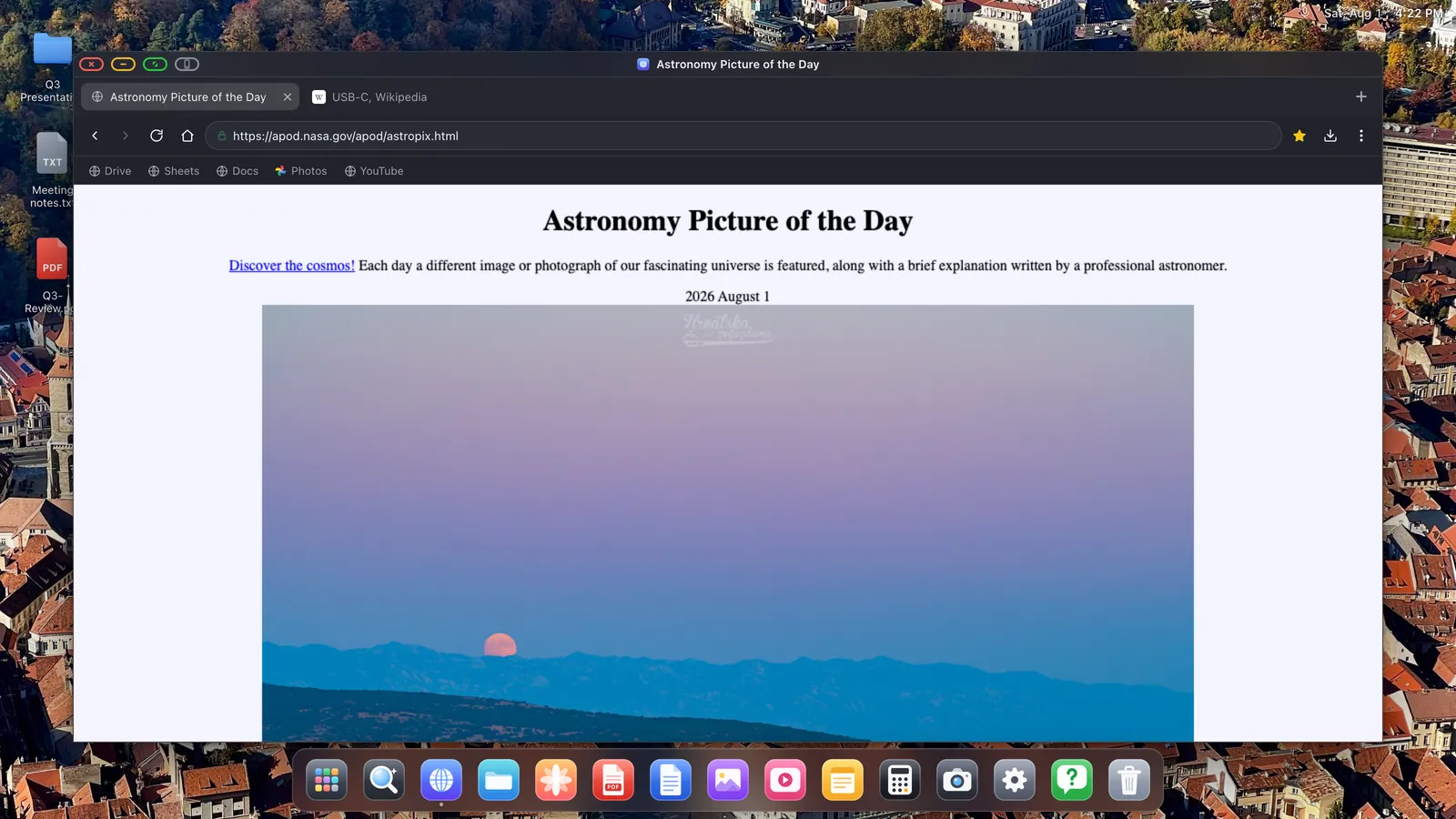
XeOS takes over the external display and draws a desktop at the monitor's own resolution, so a 16:9 portable monitor gets a 16:9 desktop, edge to edge. Windows, a dock, a file manager and a desktop browser appear on the monitor, while the iPhone becomes the trackpad. Add a small Bluetooth keyboard and mouse and you have a workstation that fits on a train table.
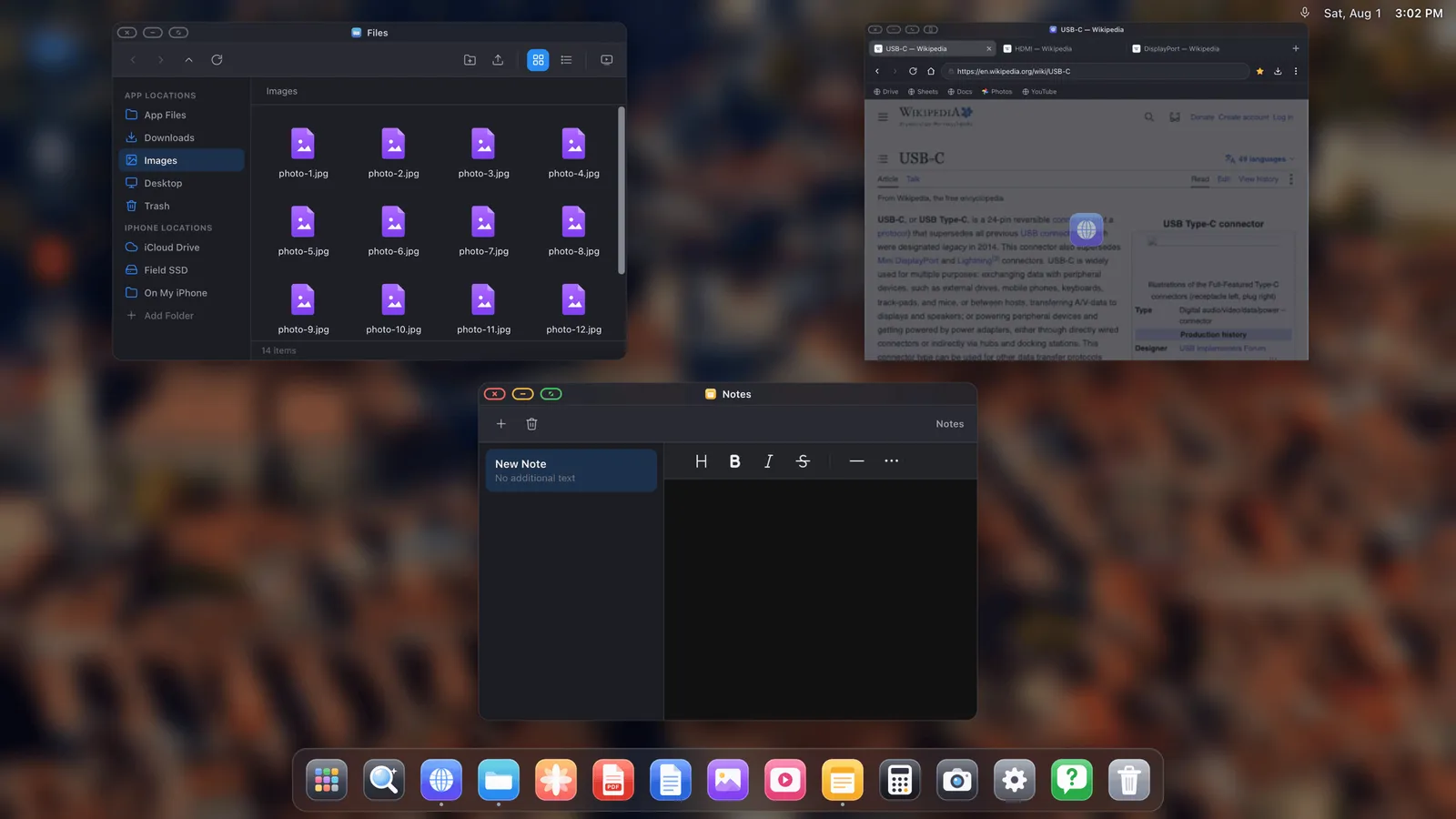
- Connect the monitor and open XeOS. It detects the display.
- In Settings › Display, pick the resolution the monitor reports, usually 1920 × 1080.
- Set the content scale. At laptop distance on a 15-inch panel, 100–110% usually feels right.
- Pair a Bluetooth mouse and keyboard, or use the phone's screen as a trackpad.
Keeping the phone charged
Driving a second screen is one of the more demanding things a phone does. For anything longer than half an hour, choose a monitor that sends power back over USB-C, or use a multiport adapter with a pass-through charging port and a real charger. A monitor that draws its own power from the phone will empty the battery quickly.
Buying a portable monitor for an iPhone
- USB-C video input. Look for "DisplayPort Alt Mode" or "USB-C video" in the specs. Some cheap models have a USB-C port that only takes power.
- Two ports. Two USB-C ports, or USB-C plus HDMI, let you send video down one and power in through the other.
- 1080p is enough. On a 15-inch panel at arm's length, 4K mostly costs battery.
- Speakers, if you'll watch videos. Otherwise sound plays from the phone or a Bluetooth speaker.
- A stand that holds its angle. It's the thing buyers complain about most afterwards.
What you can do on it
- Google Docs, Sheets and Drive at full desktop size, with a real keyboard.
- Files from iCloud Drive and USB drives in a file manager.
- PDFs you can annotate, fill in and sign.
- Full-screen video, with a built-in ad blocker.
- Websites installed as apps in the dock.
What you can't do is open your other iPhone apps on the monitor, because iOS doesn't let one app host another. You get the browser, the built-in apps and the whole web.
Questions people ask
Can one USB-C cable carry both video and power?
On monitors that support it, yes: the monitor powers the phone while receiving video. Not all of them do, so check before buying.
Does an older Lightning iPhone work?
Yes, through the Lightning Digital AV Adapter into the monitor's HDMI input.
Will the monitor's touchscreen work?
No. iOS doesn't accept touch from an external panel. Use a mouse, or the iPhone's screen as a trackpad.
Does this work with an iPad too?
Yes, including iPads without Stage Manager.