Check which kind of black bars you have
- Two wide bars, left and right, around a tall picture: that's iOS screen mirroring. It's the common case and the main subject of this article.
- A thin black frame on all four sides: that's the TV cropping and padding the picture (overscan). It is a TV setting, covered further down.
Wide bars: mirroring keeps the phone's shape
An iPhone screen is tall and narrow, roughly 19.5:9. Monitors and TVs are 16:9. Mirroring sends a copy of exactly what the phone shows, so iOS scales that tall picture up until it touches the top and bottom of the display and fills the rest with black. On a typical TV, close to half the screen goes unused.
No cable, adapter or newer iPhone changes this. Rotating the phone helps a little in some apps, but you still get the phone's interface, one app at a time, only larger.
The fix: give the display its own desktop
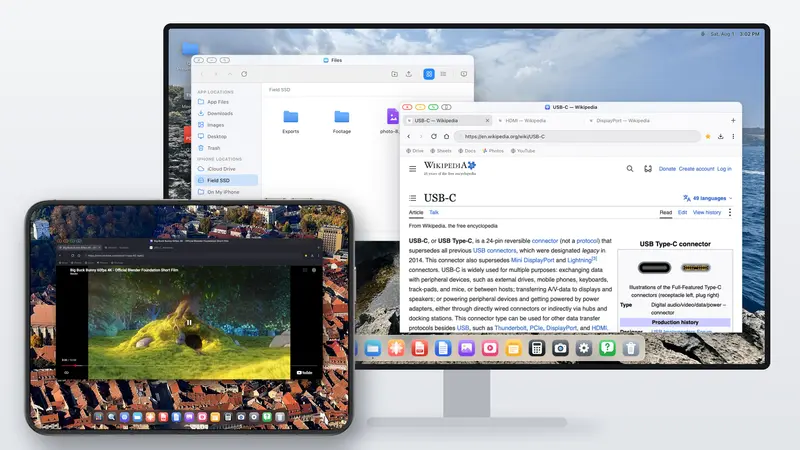
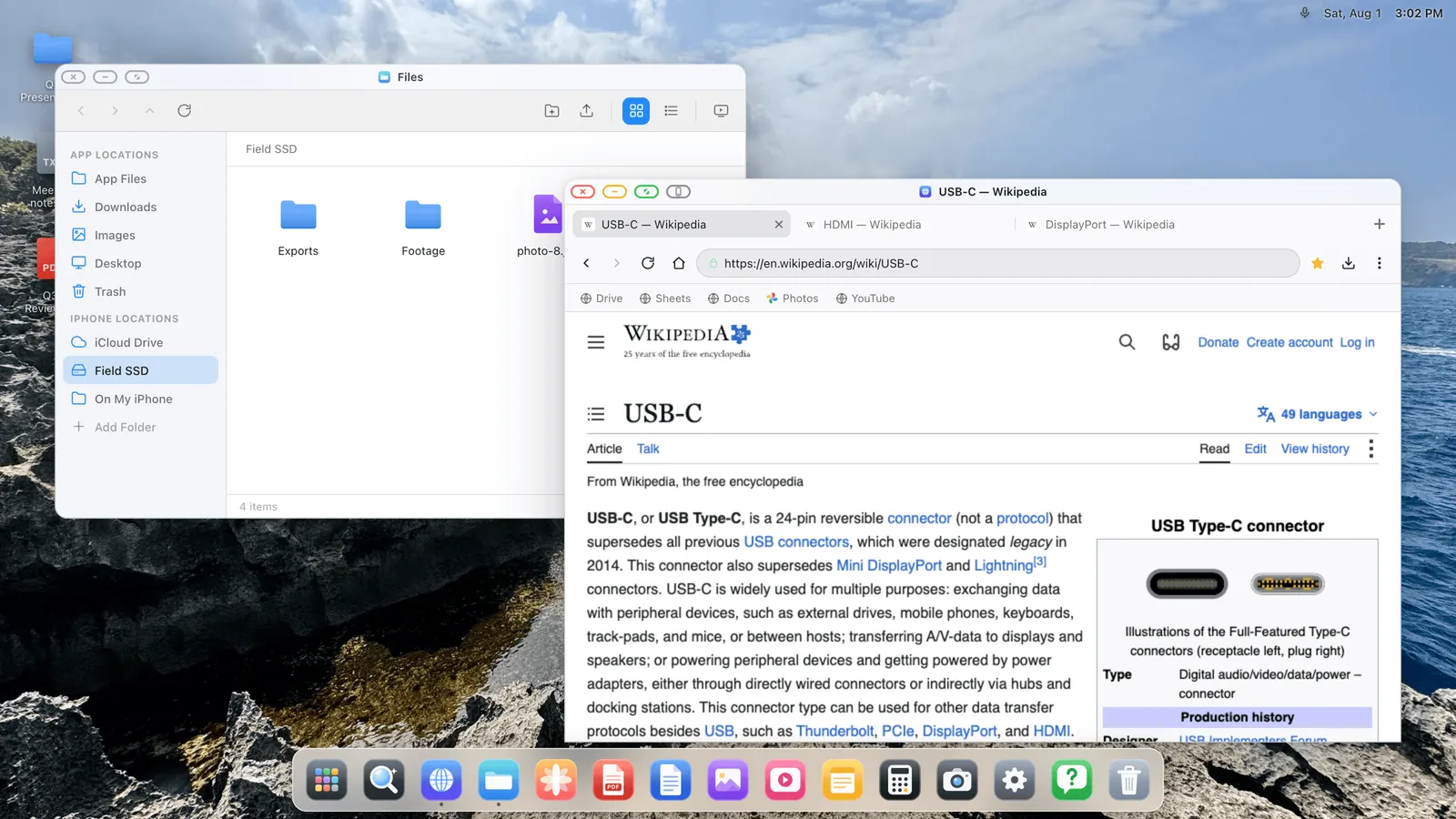
The bars go away when the external display stops receiving a copy of the phone and gets its own picture, drawn for its own shape. That's what XeOS does. With the display connected it renders a full desktop in landscape, at the resolution the monitor reports, edge to edge. The iPhone's screen turns into a trackpad, and the display gets windows, a dock, a browser and full-screen video.
- Connect the display: USB-C to HDMI on iPhone 15 and later, the Lightning Digital AV Adapter on iPhone 14 and earlier, or AirPlay.
- Open XeOS. It detects the display and takes it over.
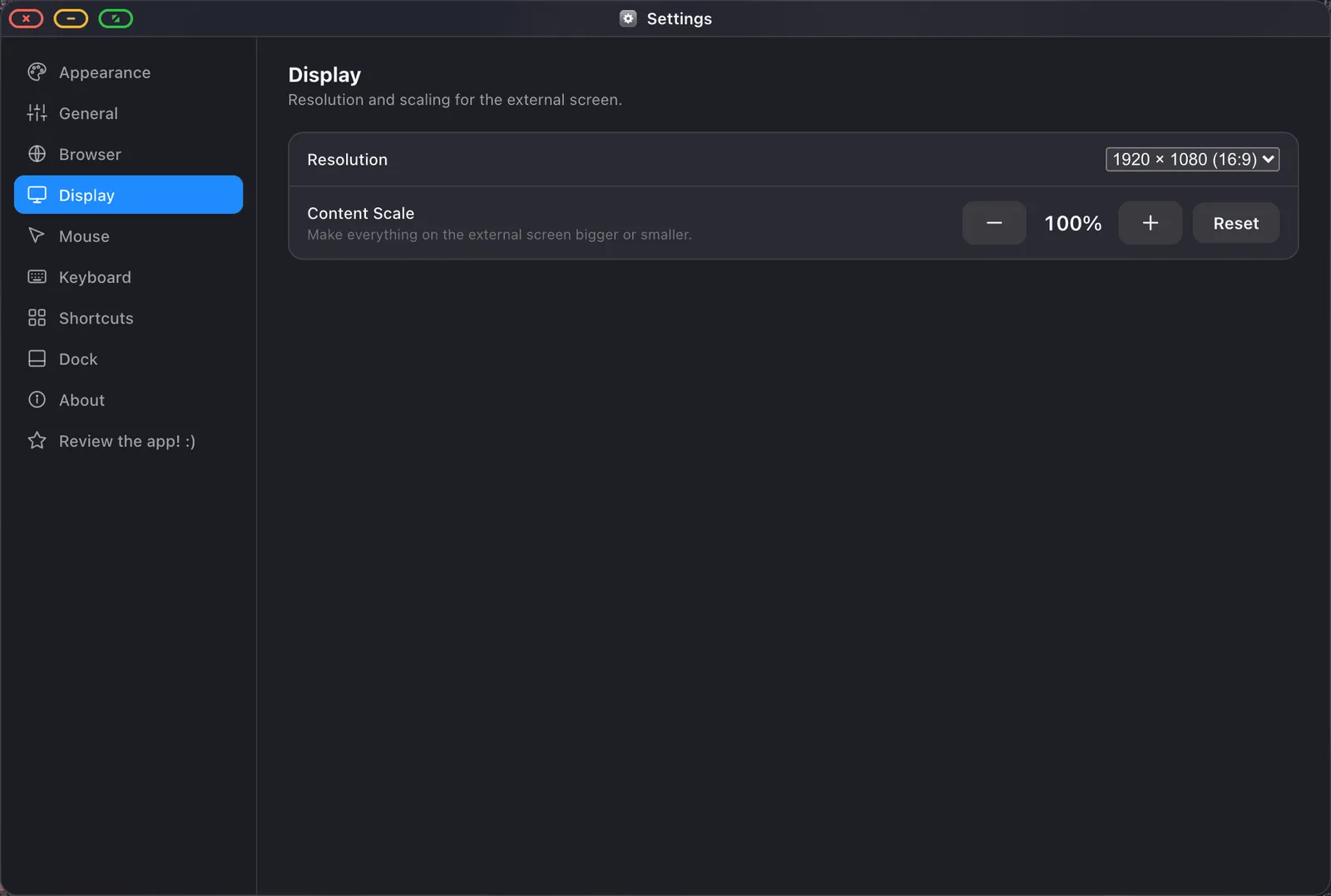
- In Settings › Display, choose the resolution your display reports, usually 1920 × 1080 or 3840 × 2160.
- Adjust the content scale for your distance: around 100% at a desk, 130–150% from a sofa.
Thin frame on a TV: switch off overscan
Many TVs crop the edges of the incoming picture by default, a habit left over from broadcast TV. You'll see it as a narrow black border all the way round even when the source is perfect. Open the TV's picture or aspect settings and look for an option named Just Scan, Screen Fit, Full Pixel, 1:1 or Original. Turn it on and the frame disappears.
Full screen means the whole screen
Once the desktop fills the display, any window can go full screen too. Video, slides and documents then use every pixel, with no title bar, tabs or dock in the way. Move the pointer to the top edge to bring the controls back.
Questions people ask
Do I need a newer iPhone or a different adapter?
No. Any iPhone that can send video to a display works, with the adapter you already have. The bars come from mirroring, not from the hardware.
Does it work over AirPlay?
Yes. Start AirPlay to the TV, then open XeOS and it uses that screen. A cable has less delay and charges the phone at the same time.
Why does one video still have bars?
If the video itself isn't 16:9, an old 4:3 clip for example, the player adds bars to keep its proportions. That's the video, not the display.
Do I have to set it up every time?
No. XeOS remembers the resolution for each display, so the next time you connect the same screen it fills it straight away.